Acquisition Settings
Acquisition settings window is used to control the acquisition. Open by selecting Options->Acquisition from the top menu. The content of the window depends on the active tab - this page describes the Var Viewer settings. Trace settings are described in Trace acquisition settings.
General section
The general section holds general settings for the acquisition.
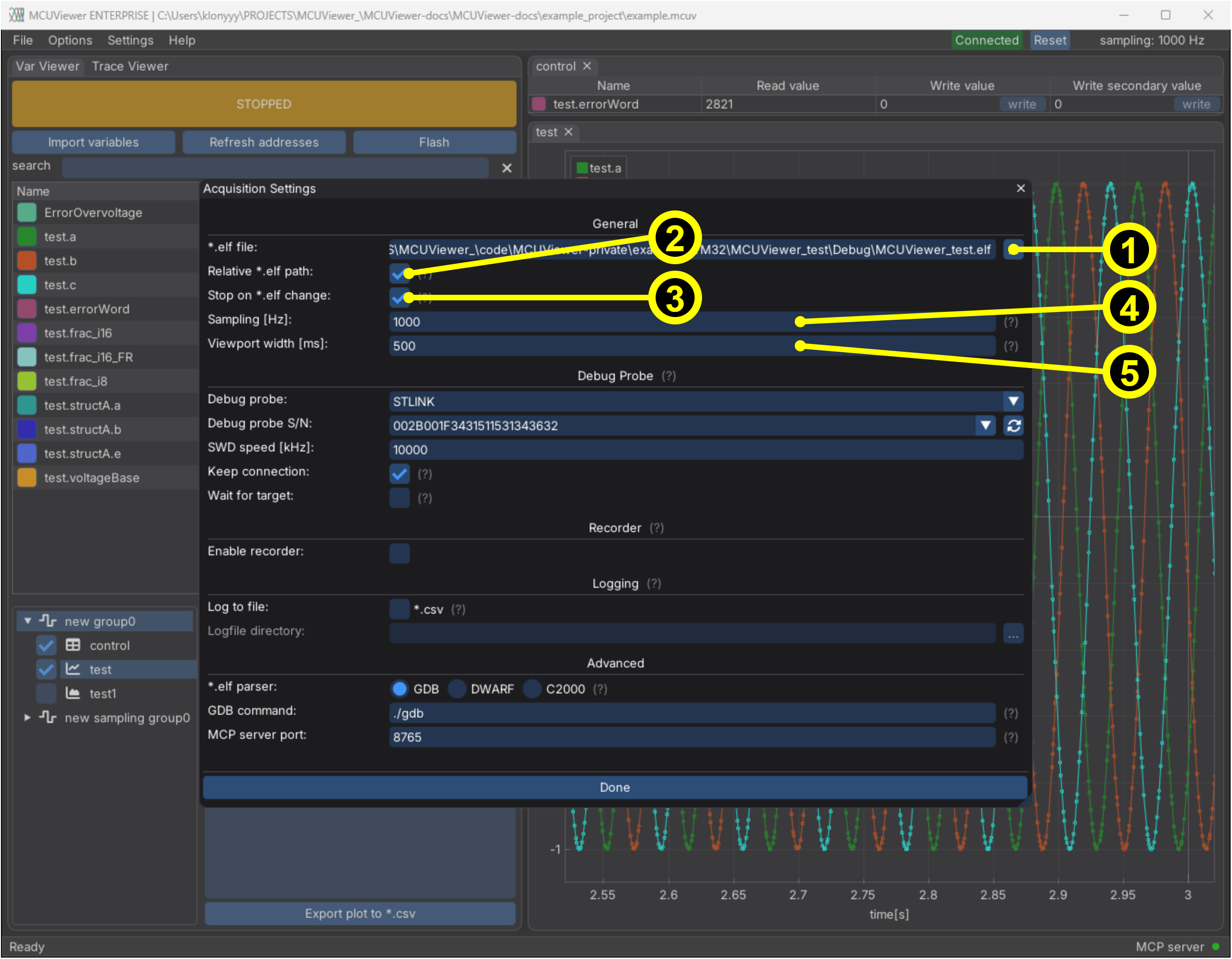
*.elf file- select the .elf file of your project (.out and *.coff files are accepted too).Relative *.elf path- check if you’d like to save the *.elf path in your project file as relative to the project file. This can be useful when you share your project with others.Stop on *.elf change- if checked the acquisition will be stopped as soon as the *.elf file starts changing (whenever you recompile). The variable addresses are refreshed automatically once the new file is written.Sampling [Hz]- default sampling frequency in Hz. Depending on your debug probe setup this can be reached or not. Each sampling group can override it - see Plot group tree.Viewport width [ms]- default width of the plot viewport in milliseconds during acquisition. It can be overridden per group as well.
All samples of an acquisition run are kept, so after stopping you can pan and zoom through the whole run. To stream the data to a file use Logging section.
Debug probe section
The debug probe section holds settings for the debug probe. The following debug probes are available:
STLINK- native ST-Link support.STLINK (CUBE PROGRAMMER)- ST-Link driven through the STM32CubeProgrammer API. Use it when your target is not supported by the nativeSTLINKoption. Requires STM32CubeProgrammer to be installed.JLINK- SEGGER J-Link. Requires the J-Link software pack.GDBSERVER- any probe that can be accessed through a GDB server, for example OpenOCD. See the next section.SERIAL- serial port connection, see Serial Driver.
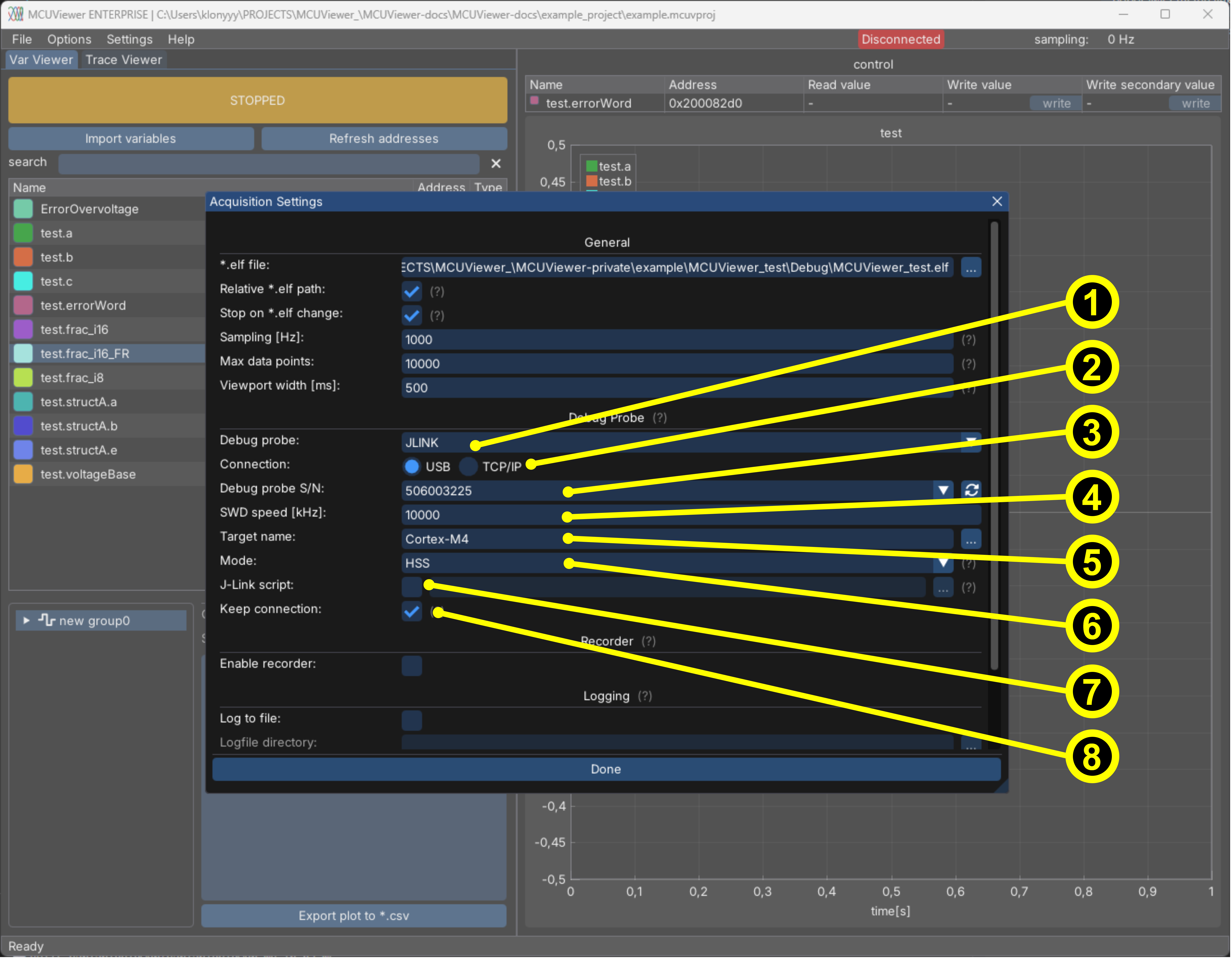
The window below presents J-Link settings, as ST-Link setup is more straightforward.
Debug probe- select the debug probe you are using.Connection(J-Link only) - select connection type USB or TCP/IP.Debug probe S/N- select the serial number of your debug probe. Click the refresh button next to it after connecting a new probe. For a J-Link connected over TCP/IP type the serial number of the probe.SWD speed [kHz]- select a SWD speed in kHz. Be careful with too high values as they can cause target resets. Too low values will lower the maximum data rate. The recorder module is not affected by this setting.Target name(J-Link only) - type your target name or click...to pick it from the J-Link device list. For some targets there might be a CPU halt issued on acquisition start. In such cases select a generic device, for example Cortex-M4 instead of STM32G474.Mode(J-Link only) - select eitherNORMALor HSS mode. Normal mode will work on all J-Link probes, however it’s much slower. HSS mode allows to reach very high update frequencies (tens of kilohertz), however it’s limited to certain J-Link types. The recorder module is not affected by this setting.J-Link script(J-Link only) - select the checkbox and set the path to a custom J-Link script if needed.Keep connection- if checked the connection will be kept open after acquisition is stopped. With some probes it’s necessary to avoid target halts when restarting. Uncheck if CPU halts are not problematic in your application - this makes programming easier as you don’t have to manually disconnect using theConnectedbutton in the top menu bar.Wait for target- if checked, after pressingSTARTMCUViewer keeps retrying until the debug probe and the target are connected instead of failing immediately. The main button showsWAITING FOR TARGETin the meantime. Useful when the target is powered on or plugged in after starting the acquisition.
STLINK (CUBE PROGRAMMER)
This probe type uses the STM32CubeProgrammer API library instead of the built-in ST-Link driver.
API library file- path to the CubeProgrammer_API library (*.dll, *.so or *.dylib). MCUViewer looks for it in the default STM32CubeProgrammer installation directory - set it manually only if it was not found.API library status- showsFOUNDwhen the library can be loaded, otherwise the reason why it cannot.
The serial number list and SWD speed are available once the library is found. The Keep connection option is not available for this probe.
GDB server probe section
GDB server can be used in case your probe is not natively supported by MCUViewer (other than ST-Link and J-Link).
To use the GDB server probe you first need to start a GDB server that can connect to your probe. It can be a vendor-provided GDB server or OpenOCD. Since GDB servers usually halt the target on connect we need to either resume it or configure it to not halt. There are two ways to achieve this:
Resume the target using telnet
Avoid halting the target by adding the following line to the target.cfg file:
$_TARGETNAME configure -event gdb-attach { resume }
gdb memory_map disable
After running the server ensure a correct IP address and Port is set in MCUViewer. After that simply exit the window and start acquisition. If the acquisition is too slow please check out the Recorder page.
The exact same GDB server can be used to download the new firmware so that no server restart is needed. In such cases make sure the target is halted before download and after it should be resumed. An example flow might look like this:
Start the GDB server, pass the probe and target as arguments
Connect using MCUViewer (at this stage it will most probably be halted so all traces will be constant)
Connect from other terminal using telnet to the GDB server
Download the new firmware
Resume the target
Go back to MCUViewer
This can be automated with the Flash button - see Flashing and the STM32 and OpenOCD example.
Serial probe section
Serial probe can be used if your probe is not natively supported by MCUViewer, even with GDB server - this is the case for example with C2000 probes. The serial probe requires some setup on the target side that can be found in the Serial Driver section and Examples section.
Recorder section
Recorder settings are discussed in more detail in Recorder.
Logging section
Logging can be used to stream data to a *.csv file in real time. Tick the *.csv checkbox next to Log to file and select the Logfile directory. All sampled variables are saved in a csv table with a timestamp. A new log file is created on each start in the selected directory.
Advanced section
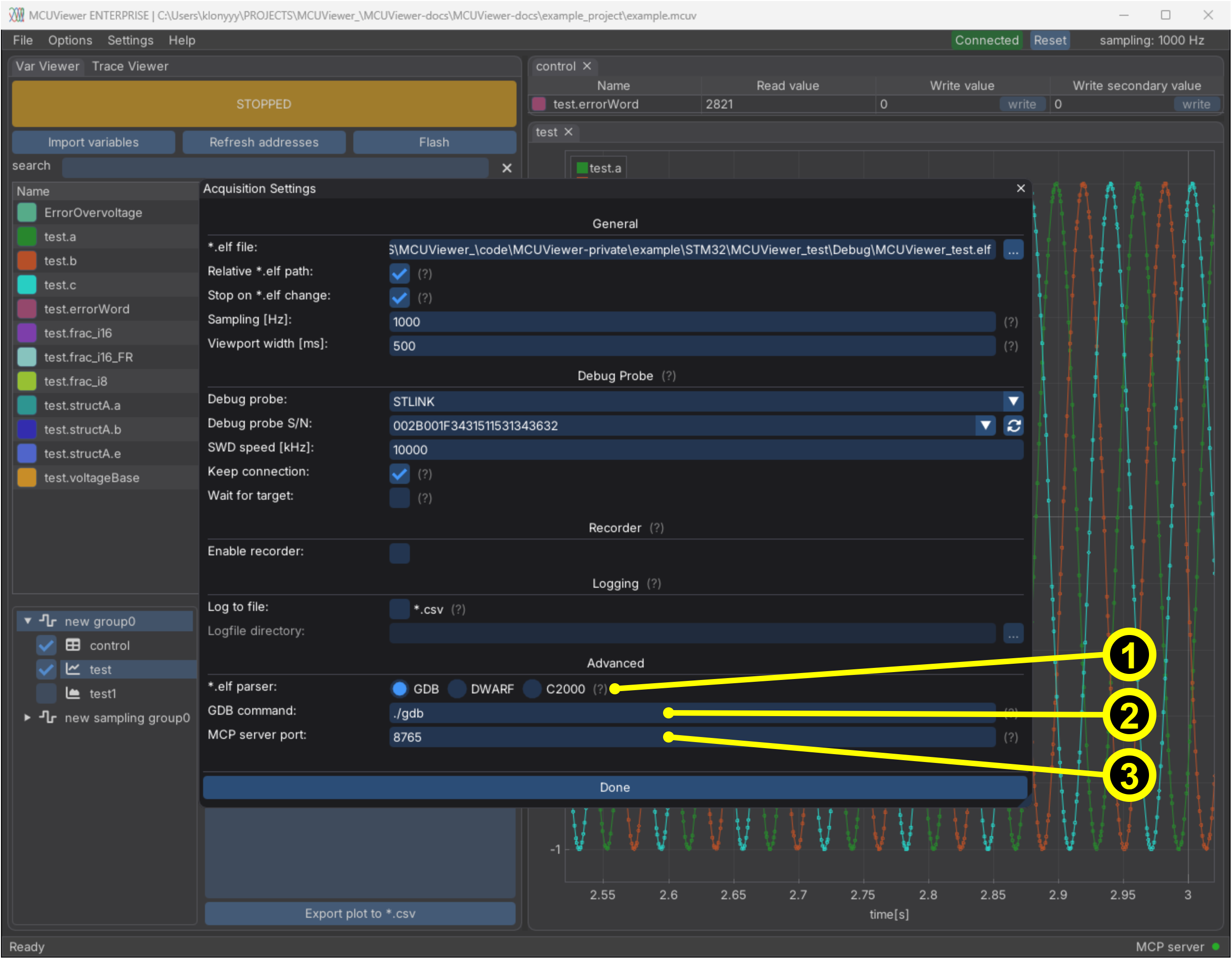
*.elf parser- select the parser used to read the variables from the *.elf file:GDB- default, uses GDB to parse the *.elf file.DWARF- built-in DWARF parser, much faster than GDB. Recommended for large projects.C2000- for TI C2000 targets. Uses TI’sofd2000tool, which correctly handles TI’s custom DWARF extensions. When a C2000 *.elf file is selected, MCUViewer suggests switching to this parser.
GDB command(GDB parser only) - in case you’d like to use a different gdb instance on your PC you can change it here. For theC2000parser this row is replaced byofd2000 pathandofd2000 status- the path is detected automatically from the TI C2000 code generation tools / Code Composer Studio installation and can be overridden if needed.MCP server port- preferred port of the built-in MCP server used by AI agents. See AI Agent Integration.