General Settings
General settings window is used to control application settings. Open by selecting Settings->General from the top menu.
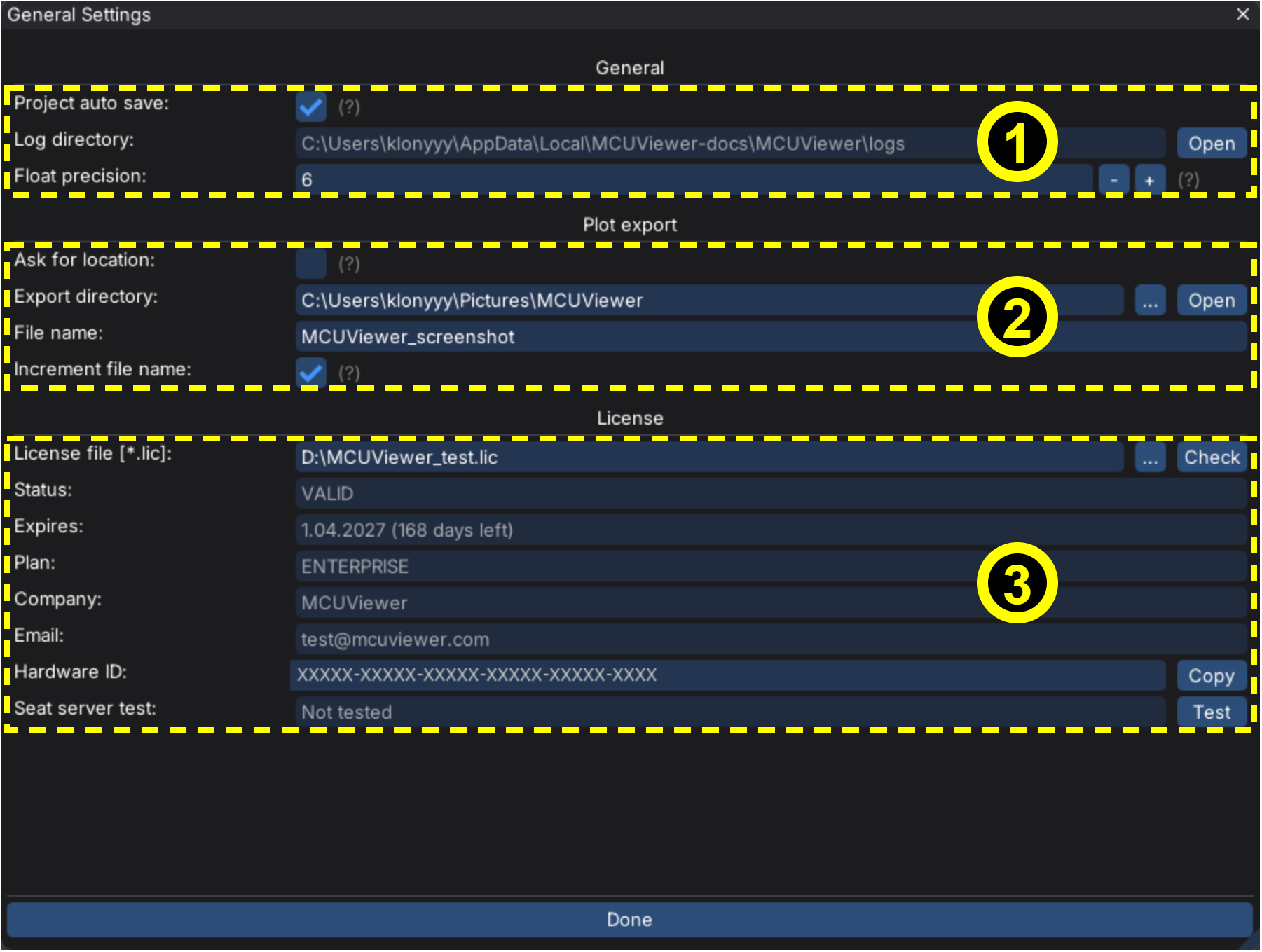
1. General section
Project auto save- select if you’d like to automatically save your project every 2 minutes.Log directory- shows the current log directory. It can be accessed quickly by pressingOpenbutton next to it.Float precision- change the number of decimal places used when displaying floats in plots, tables and statistics.
2. Plot export
The Plot Export section provides options for saving the current plot area as a *.png file. Plots can be saved either by navigating to File -> Save Plots to *.png or by using the keyboard shortcut Ctrl+P.
By default, all plots are saved to the system’s Pictures directory. Users with an enterprise license have the option to change the Export directory and File name, or enable the Ask for location option to open a Save as dialog for each screenshot. Increment file name adds a number to the file name when saving multiple plots.
3. License section
License section allows to open the license file of MCUViewer. License files have *.lic extension and can be purchased from MCUViewer website. After selecting the file click Check to verify it.
The license section shows:
Status-VALIDwhen the license is correct, otherwise the reason why it is not. For seat-based licenses the seat state is shown as well.Expires- expiry date of the license and the number of days left. Perpetual licenses never expire - they cover the updates released until the given date. If a perpetual license does not cover the current version, aRenewbutton is shown.Plan-FREE,COMMUNITY(non-commercial use only),STANDARD,ENTERPRISEorPERPETUAL(bound to this computer).CompanyandEmail- license owner.Hardware ID- identifier of this computer. ClickCopyand paste it on the activation page of a perpetual license to bind the license to this computer.Seat server test- clickTestto check the connection to the seat server.
Offline license activation
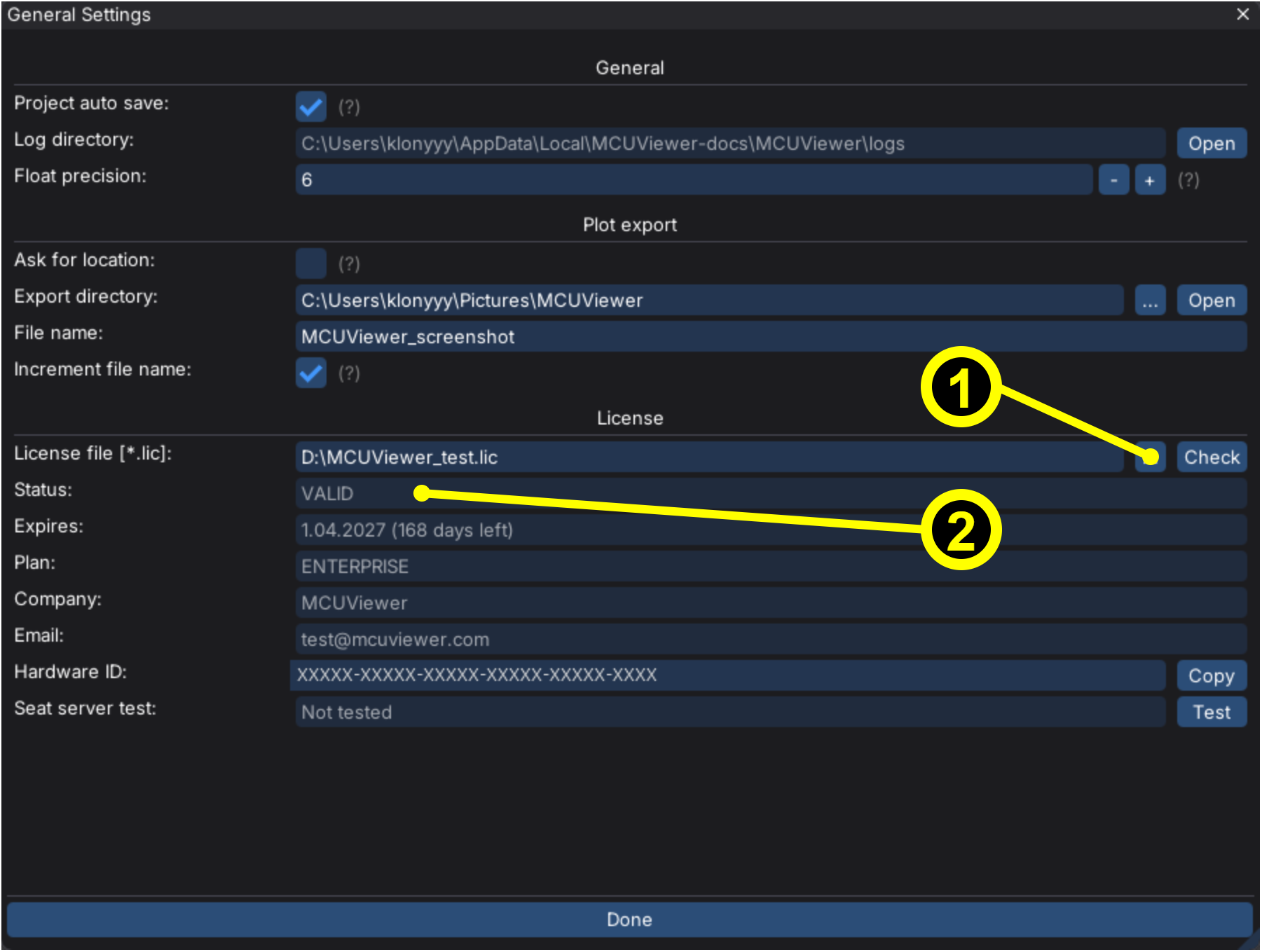
Select the *.lic license file
Make sure the status shows
VALID
Perpetual license activation
Click
Copynext to theHardware IDfield.Paste the hardware ID on the activation page of your perpetual license and download the license file.
Select the *.lic license file and make sure the status shows
VALID.
Online (seat-based) license
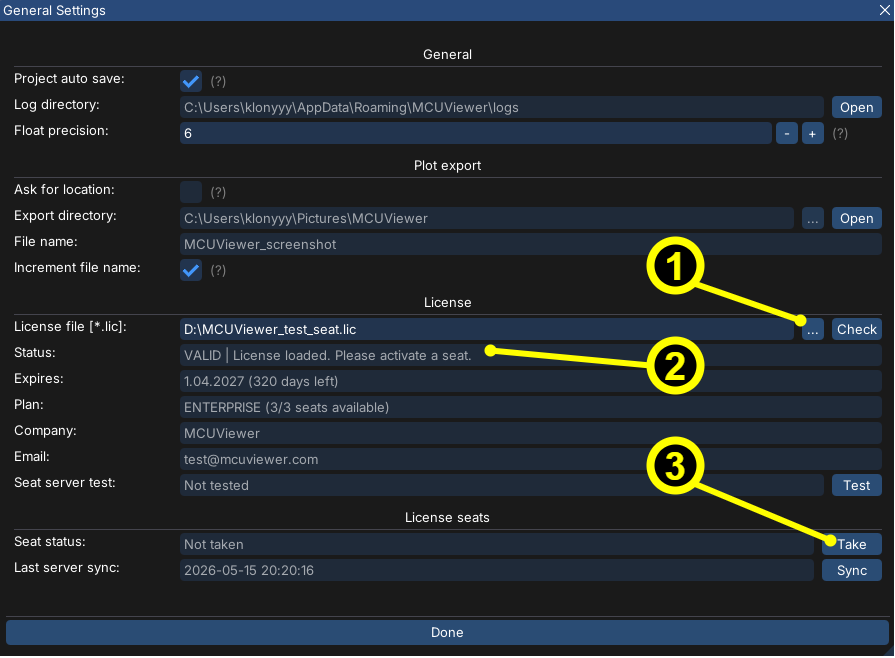
Select the *.lic license file
Make sure the status shows
VALIDIn the
License seatssection click theTakebutton to reserve a seat for this computer. After taking a seat it can be released for another user (Releasebutton) after a cooldown period.
The License seats section also shows the last server sync time (click Sync to refresh it). Tick Take seat automatically to take a free seat each time MCUViewer is opened.