Variable Viewer
The Variable Viewer module allows you to visualize the values of variables in real time. It uses the debug probe to sample memory at addresses read from the *.elf file of your project. It is quick to set up and provides an almost non-intrusive way of accessing MCU data. The Variable Viewer module allows you to both read and write variable values in real time.
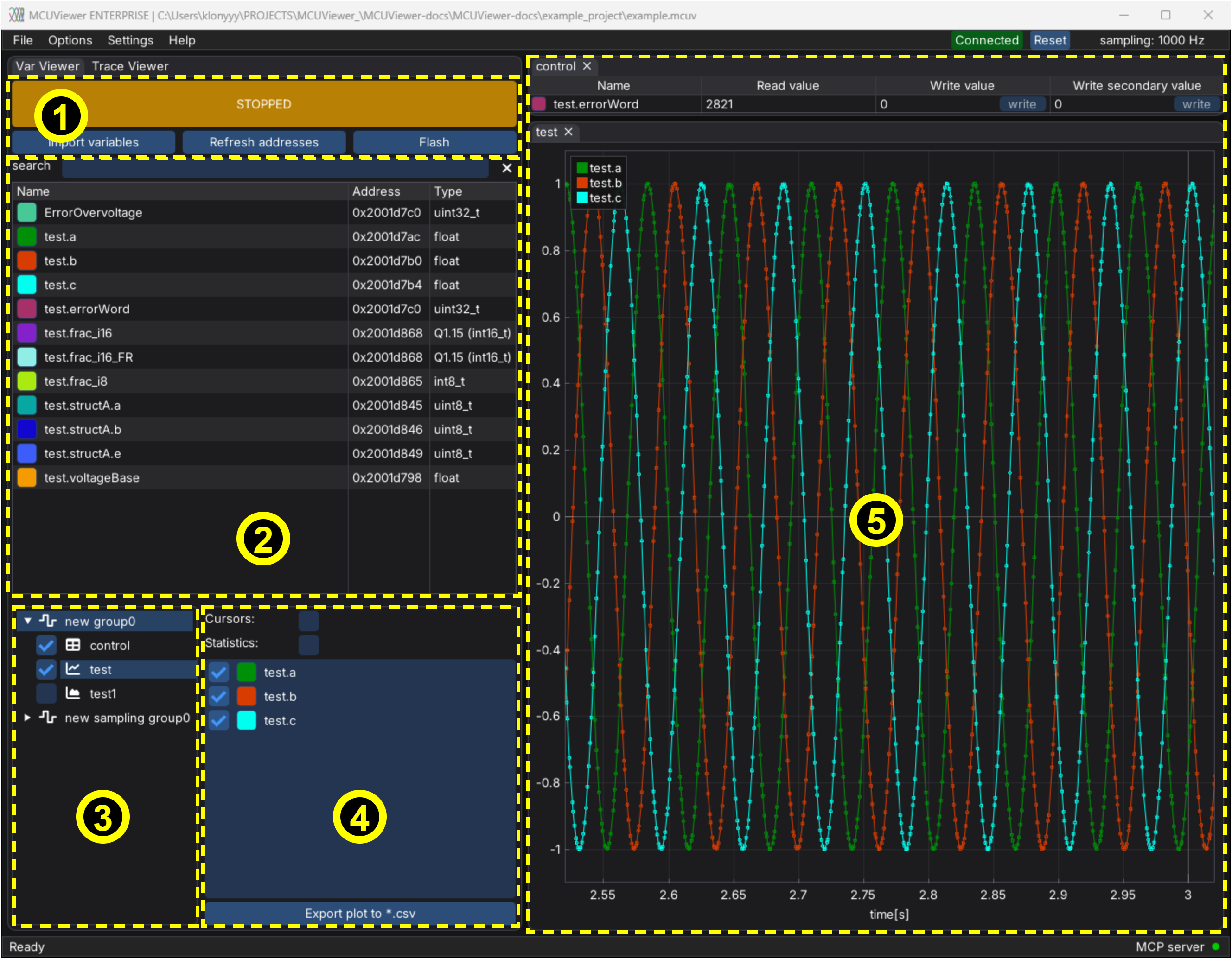
Variable Viewer window consists of five main parts:
Control panel - main control panel
Variable table - imported variables will show up here
Plot group tree - list of all groups and plots
Plot settings - settings for currently selected plot
Plot area - plots are drawn here, each in its own dockable window
Control panel
There are four buttons in the control panel:
START/STOP button – used to start/stop data acquisition (shortcut:
Space). The button shows the acquisition state:STOPPED,RUNNING,WAITING FOR TARGET(seeWait for targetin Acquisition Settings) orERROR. When an error occurs, hover over the button to see the error message.Import variables button – used to import variables from your project and add them to the variable table.
Refresh addresses button – used to refresh the addresses of imported variables. When the *.elf file changes, the button turns orange and the addresses are refreshed automatically.
Flash button – flashes the firmware using the command configured in Flashing.
The top menu bar shows the debug probe connection state - click Connected to disconnect the probe, or Reset to reset the target - and the actual sampling frequency.
Variable table
The variable table holds all the variables together with their addresses and types. Use the search field to filter the list.
There are two ways to add variables to the table:
Click the
Import variablesbutton and select the variables from your project. UseCtrl/Shiftto select multiple variables, or double-click a variable to import it right away.Right-click in the empty variable table area and select
New -> Variable. Set the name manually and close the window. This option can be used if your variable is not listed in the import dialog.
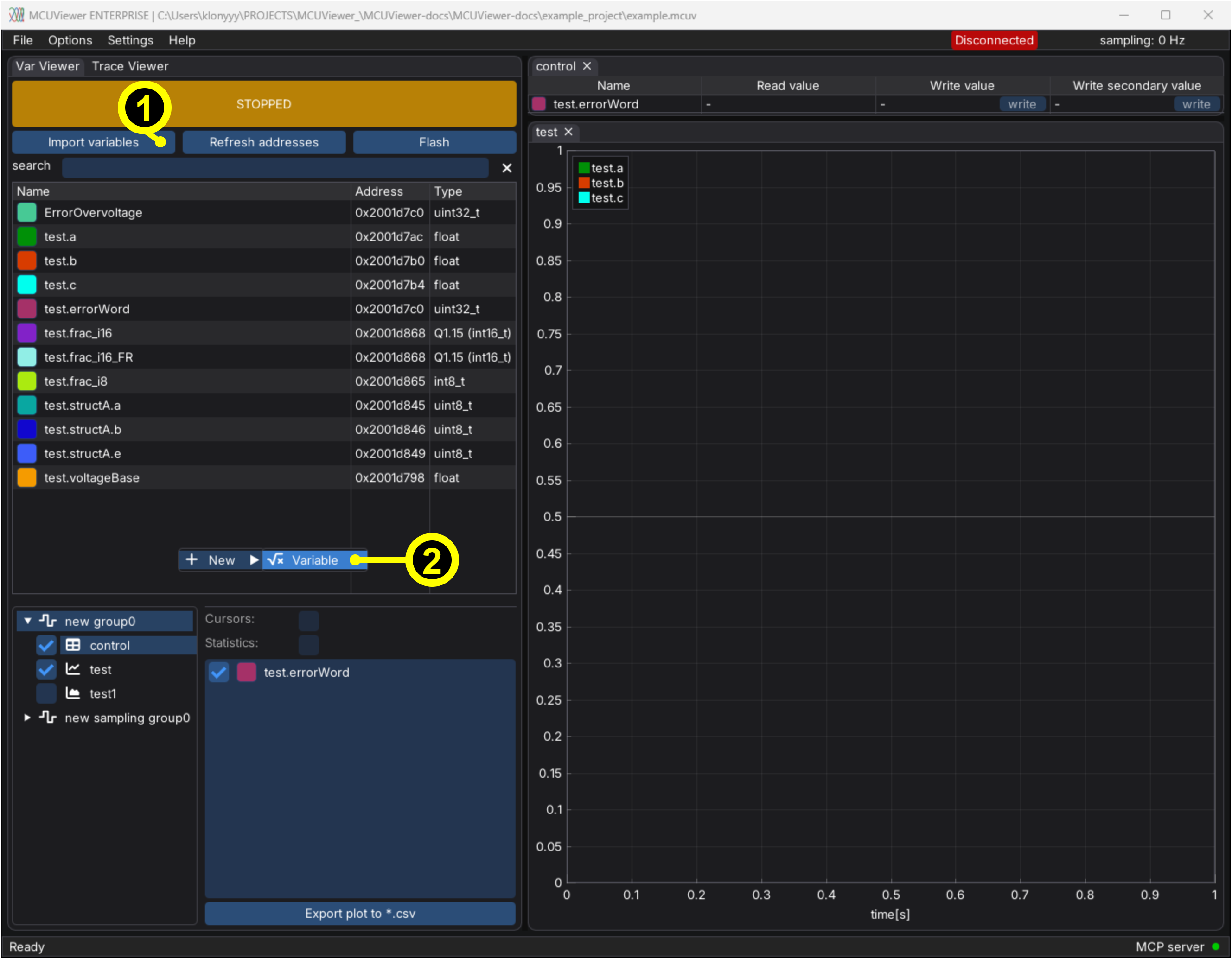
Right-clicking a variable opens a context menu with New, Copy, Delete and Properties options. Multiple variables can be selected with Ctrl/Shift and copied or deleted at once. F2 opens the properties of the selected variable and Delete deletes it. Variables can be deleted only when the acquisition is stopped.
Variables that cannot be found in the *.elf file are shown with a red NOT FOUND! address and are not sampled.
You can see each variable’s settings by double clicking it or by right clicking and selecting Properties.
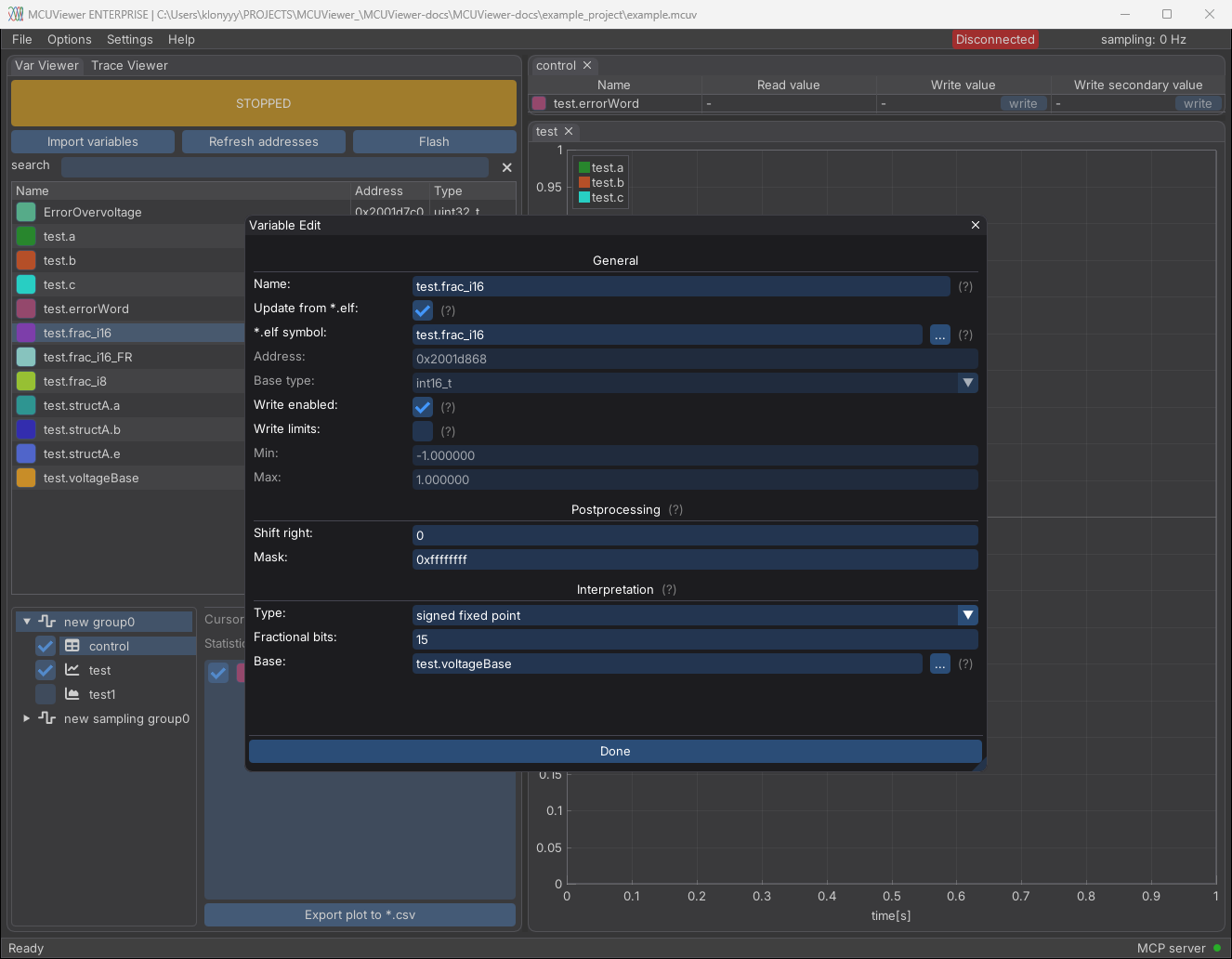
Generally, the default settings are sufficient. However, there are cases when modifications are necessary.
General section
Name- unique name of the variable. It can be different from the tracked *.elf symbol.Update from *.elf- when checked, the address and type of the variable are read from the *.elf file.*.elf symbol- name of the *.elf symbol the variable tracks. Type it or click...to pick it from the list of symbols found in the *.elf file.AddressandBase type- read from the *.elf file. They can be edited only whenUpdate from *.elfis unchecked.Write enabled- when unchecked, no value can be written to this variable.Write limits- when enabled, writing values outside of theMin-Maxrange is rejected.
General section - manual variable import
Sometimes, the import window may not detect variables with more complex types. In such cases, you can use the New -> Variable option to add the variable manually and type the path to it in the *.elf symbol field (for example myStruct.member or myArray[3]). The address is resolved when the field loses focus or when the Refresh addresses button is clicked.
General section - custom address
In some cases, it may be necessary to read a predefined address, for example, in the register area. This can be done by creating a new variable and unchecking the Update from *.elf checkbox. Then, the address and type can be set manually. Later on, to extract certain bits, the Postprocessing section can be used.
Postprocessing section - error bits
The Postprocessing section can be used to extract specific bits from a variable. This is useful, for example, when reading error flags.
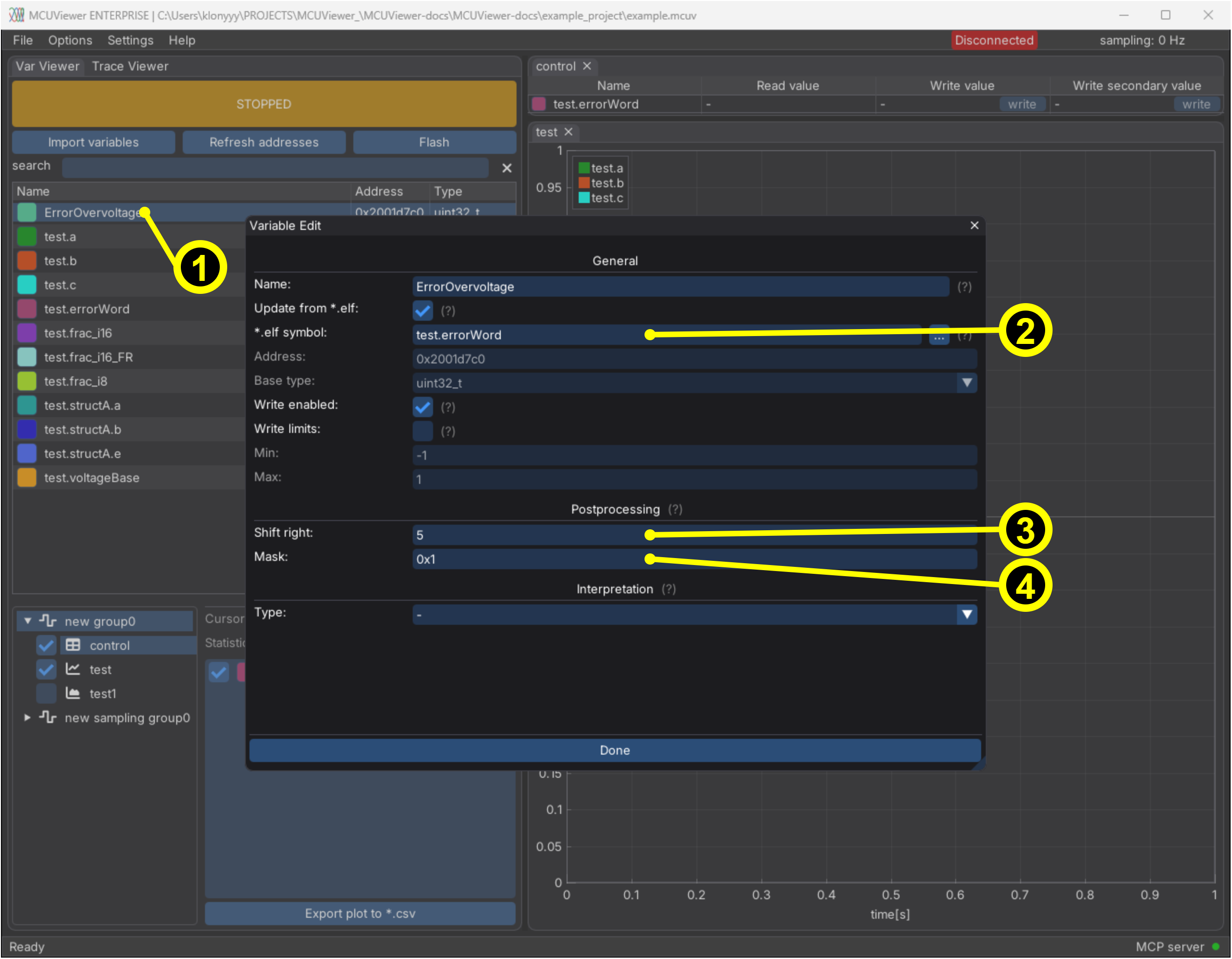
Add a new variable (right-click ->
New -> Variable).Set the
*.elf symbolfield to the error word variable (type it or pick it with...).In the
Postprocessingsection, setShift rightto the position of the bit.Set the
Maskto0x1to select only the least significant bit.
After that, the variable should be set to one when the bit is set and zero when it’s cleared.
Interpretation section - fixed point variables
MCUViewer is able to interpret fixed-point variables. To do so, make sure the original variable is imported. You can either copy the original and modify the copy, or modify the original directly.
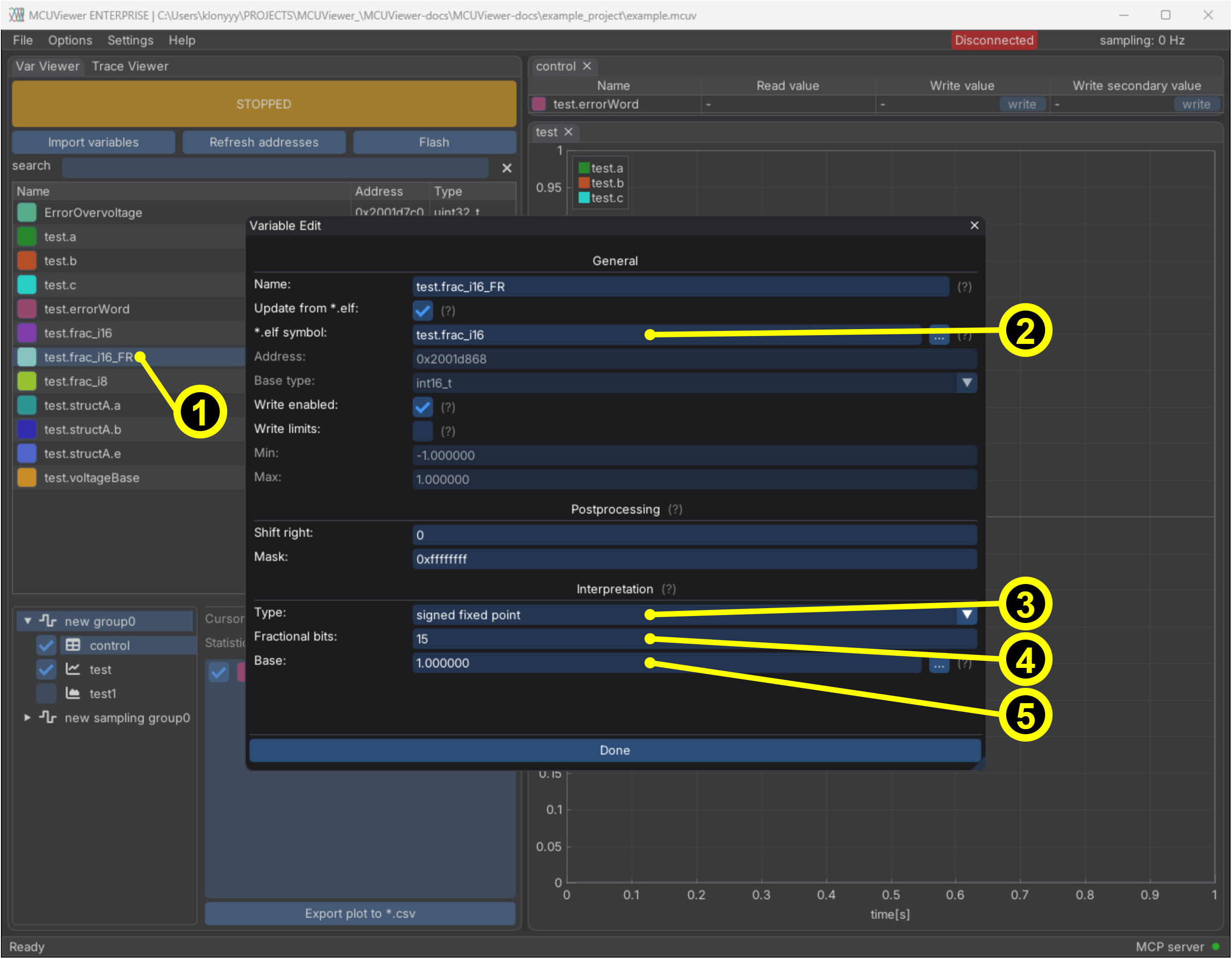
Copy the original variable (right-click ->
Copy). Add “_FR” to the copied variable name.Make sure the
*.elf symbolfield points to the original variable - a copied variable tracks the same symbol automatically.Select the fixed-point interpretation
Type(signed fixed pointorunsigned fixed point).Set the number of
Fractional bits(depends on the detected type).Either type a numeric
Base(scaling factor) or select a variable that holds it with.... This is useful when you’d like to represent physical values in the plot.
Interpretation section - enums
Integer variables can be displayed as enums:
enum- for variables of an enum type the labels are read from the *.elf file.custom enum- define your own labels by typing aLabeland aValueand clickingAdd. Right-click an entry to remove it. This is useful for plain integer variables, for example state machine states.
Table plots display the label next to the numeric value, and the write column of an enum variable becomes a drop-down list of the labels.
Plot group tree
The plot group tree holds all groups and plots. Each group can contain multiple plots - only the plots of the selected group are displayed and sampled. There are two types of groups:
Sampling group – Plots in this group are sampled at the frequency set in the Acquisition window (or the group’s own frequency, see below). This allows for recording longer time series. However, it is not recommended for high-speed signals, as they may become distorted due to the lack of synchronization between the sampling frequency and the signal frequency.
Recorder group – Curve plots in this group are displayed from the recorder’s buffer. The recorder allows high-frequency data to be displayed without distortion. Please see Recorder for more details.
To add a new group simply right click in the plot group tree area and select New -> Sampling group or New -> Recorder group. A new group comes with an empty table plot and an empty curve plot.
Right-click a group to open its context menu:
New- add a new group, or a new plot of the selected type (Curve,Bar,Table,XY) to this group.Copy- duplicate the group.Copy to recorder group/Copy to sampling groupduplicates it as the other group type.Delete group.Properties- rename the group and set its acquisition overrides.
The properties window of a sampling group has an Acquisition overrides section. When ticked, the group uses its own Sampling [Hz] and Viewport width [ms] instead of the defaults from the Acquisition Settings window - for example a slow “dashboard” group and a fast “control loop” group can live in one project.
Each plot has a checkbox that shows or hides it. Right-click a plot to add a new plot, copy or delete it, or open its properties. A plot can be dragged onto another group to copy it there. Plots can be added, shown and hidden also while the acquisition is running.
Plot properties
Plot properties can be accessed by double-clicking the plot name, by right-clicking it and selecting Properties, or by right-clicking the plot itself and selecting Plot properties.
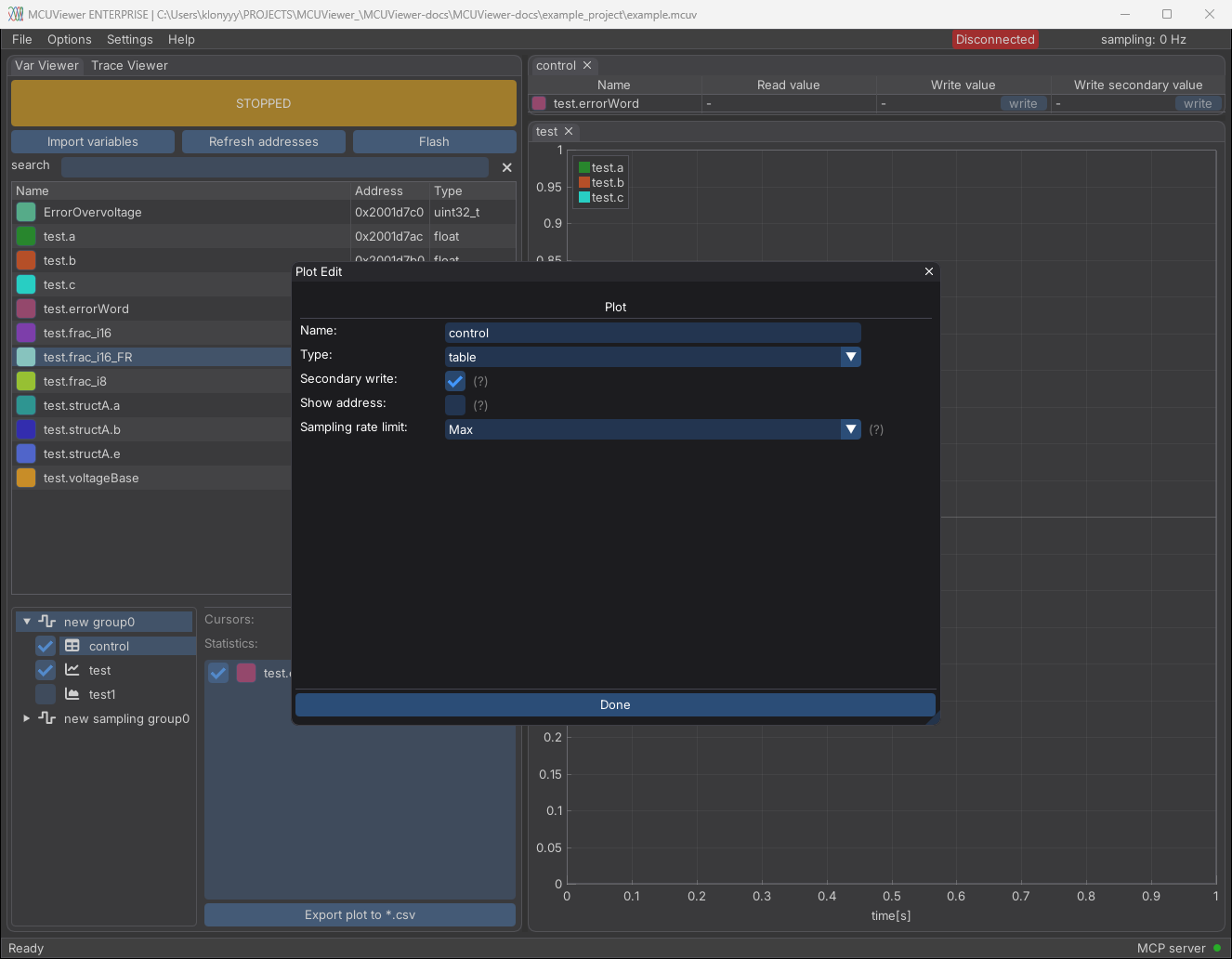
There are four plot types available:
curve- regular time based plot.bar- bar plot.table- table plot, also used to write values.XY- curve plot with a selectableX-axis variable.
Bar and XY plots are not available in recorder groups. Depending on the type, additional settings are available:
Secondary write(table) - adds a second write column, useful when you need to quickly switch between two values, for example while tuning controllers.Show address(table) - shows the address column.Sampling rate limit(table and bar) - limits how often the variables of this plot are sampled (Max,1 Hz,10 Hzor100 Hz), leaving more bandwidth for the curve plots. It works only when the debug probe is in normal mode (not in J-Link HSS mode). Variables sampled at a limited rate are not logged.
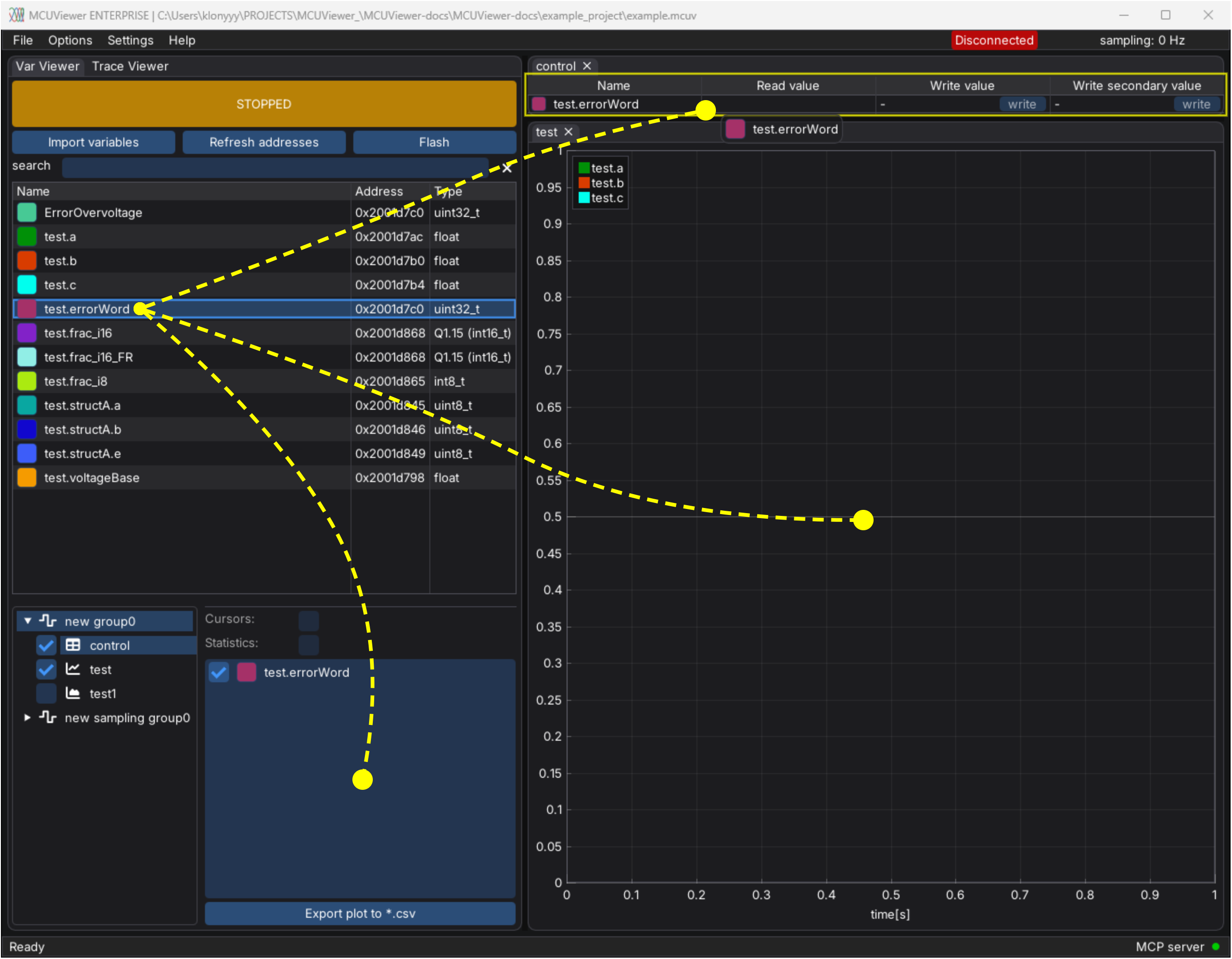
When new plots are added they are empty. One can drag and drop the variables from the variable table onto a plot (or onto the plot variable list) to add them.
Plot settings
The plot settings panel provides quick-access settings for the currently selected plot. Its appearance depends on the group type - in recorder groups it additionally holds the recorder settings (see Recorder usage). This panel allows you to enable cursors, open the statistics window, and manage the plot’s variable list.
Cursors
Cursors allow to measure signal properties like on an oscilloscope. They are available for curve and XY plots when the acquisition is stopped.
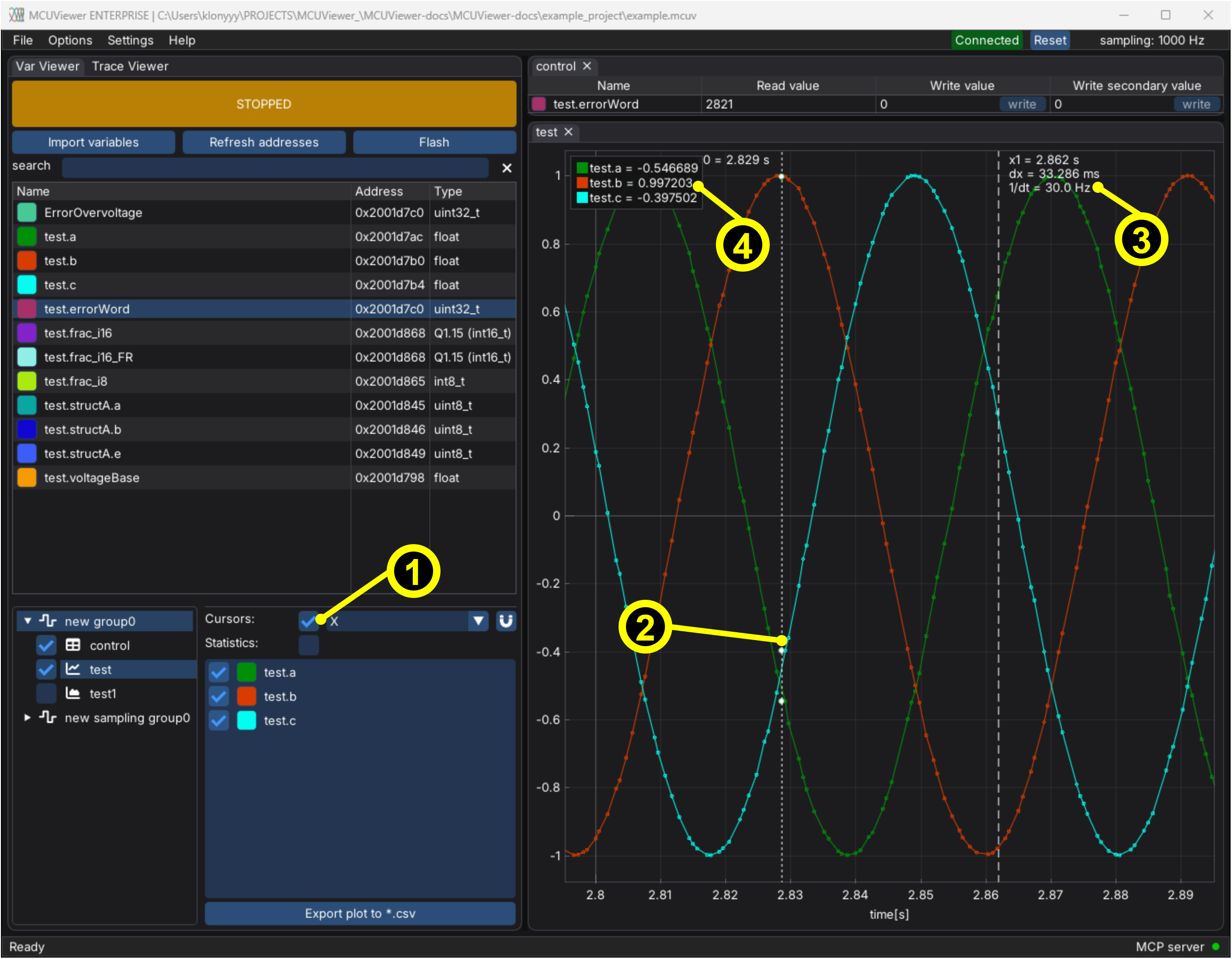
Turn on cursors and select the cursor mode:
X(time),Y(value) orX+Y. With the magnet button enabled (curve plots only) the X cursors snap to the sample timestamps.Drag the cursor lines.
The measurements are shown next to the cursors:
x0,x1,dxand1/dtfor the X cursors,y0,y1anddyfor the Y cursors, and additionallydy/dxinX+Ymode.The values of the variables at the
x0cursor position are displayed in the legend.
Statistics window
Statistics window allows to display statistics for the currently selected curve plot when the acquisition is stopped.
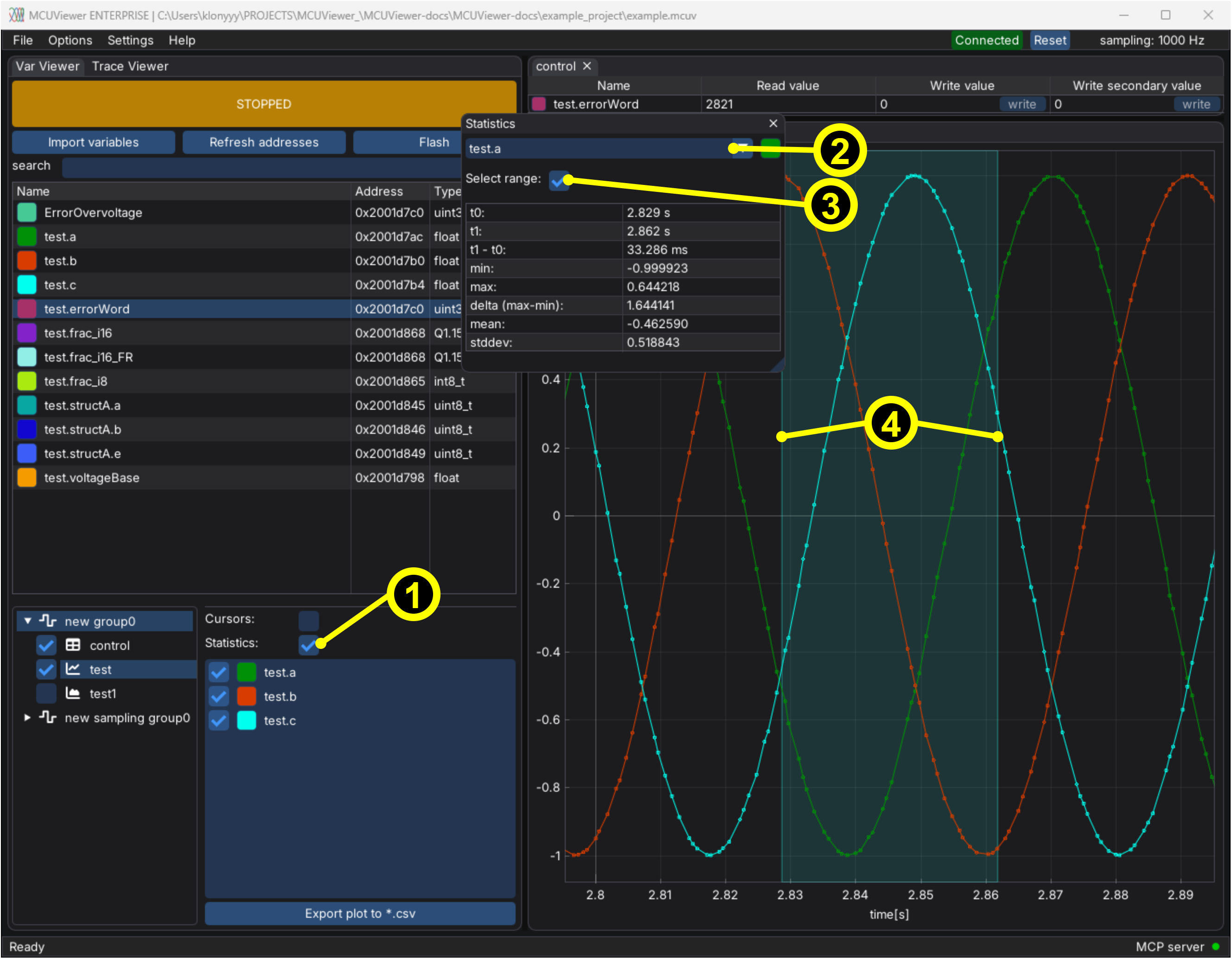
Turn on statistics window.
Select the series to be analyzed.
Tick
Select rangeto analyze a subset of data - otherwise the whole run is analyzed.Drag the ends of the range to modify it.
The window shows the analyzed range (t0, t1, t1 - t0) and the min, max, mean, stddev and delta (max-min) values of the series.
Plot variable list
Plot variable list shows the variables of the selected plot. Uncheck a variable to hide it and stop sampling it - this works also during the acquisition. Right-click a variable to remove it from the plot or to open its properties. Variables that cannot be sampled (not found in the *.elf file) are shown in red. Drop variables from the variable table here to add them to the plot.
Export to *.csv
Click to export to *.csv - the data is exported as a table of all series from the selected plot.
Plot area
Each plot of the selected group is drawn in its own window. The plot windows can be docked freely - drag a plot by its tab to move it, drop it on the side of another plot to split the area, or onto another plot’s tab bar to stack them as tabs. Closing a plot’s tab hides the plot - it can be shown again with its checkbox in the plot group tree. The layout is remembered for each project.
Right-click on a plot to open its context menu:
X-axis- for curve plotsAutofitkeeps the time axis following the viewport during acquisition - uncheck it to freely pan and zoom while acquiring. For XY plots the same range options as for the Y-axis are available.Show labelshows the axis label.Y-axis-Autofitcontinuously fits the axis to the visible data,Autofit oncefits it once right after the acquisition starts, andManual limitsfixes the axis range to the givenMinandMaxvalues (Copy current limitscopies the current view).Add plot- adds a new plot of the selected type next to this one.Plot properties- opens the Plot properties window.
Table plot
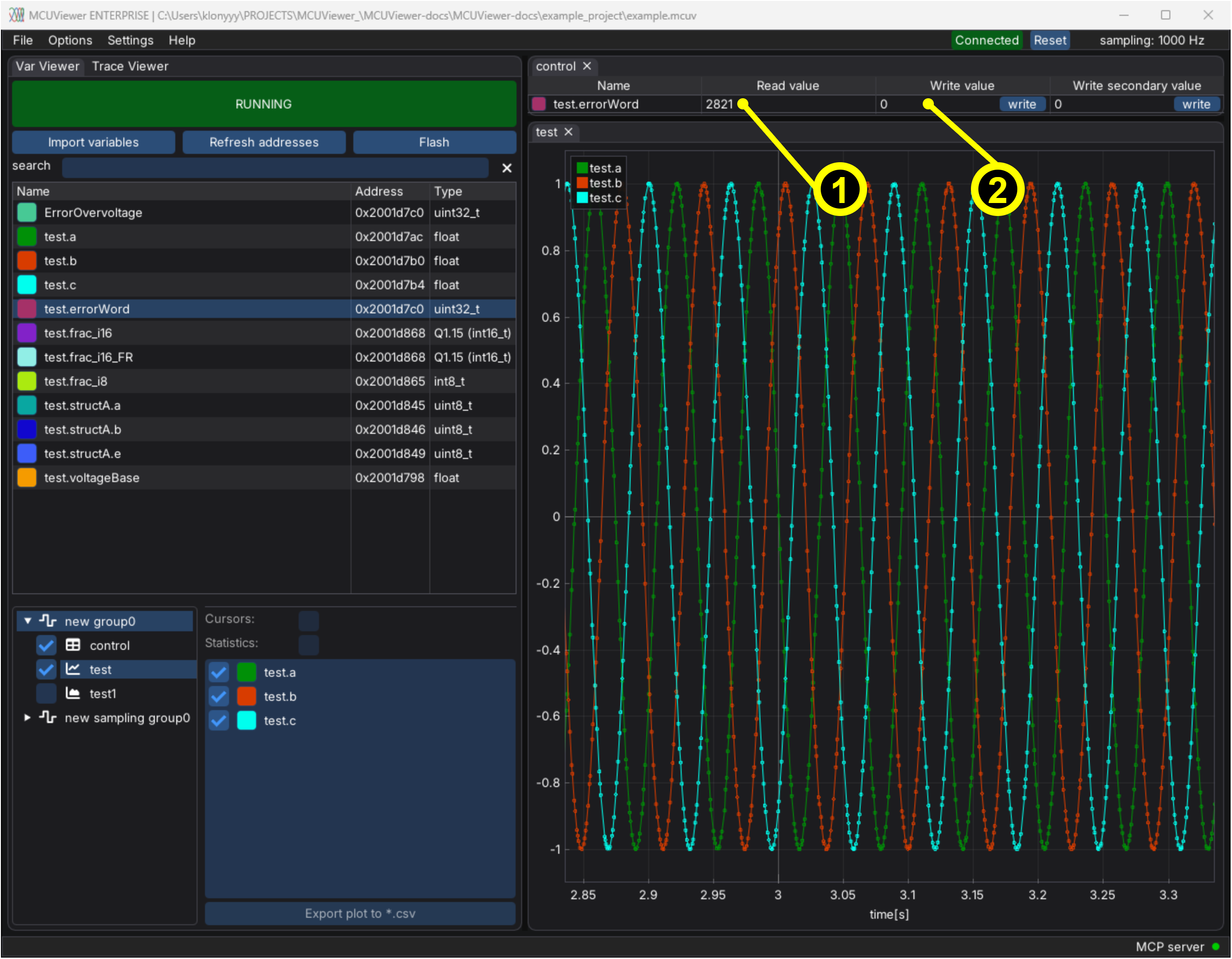
Table plot type can be used to read (1) and write (2) a variable value. Right clicking on the read field (1) allows to change the display format to decimal, hexadecimal or binary. The address column and a secondary write column can be enabled in Plot properties.
Curve plot
Curve plot manipulation is done using mouse - drag to pan, scroll to zoom, right click to open context menu. Right click and drag allows to select a zoom window. Double left click adjusts the scale to fit the data.